How to Backup PostgreSQL to Google Drive

PostgreSQL is one of the most popular databases for modern apps, SaaS products, internal tools, and client projects. It is powerful, reliable, and flexible.
But even a reliable database needs a backup plan.
If your app stores customer records, orders, subscriptions, project data, messages, or business information, you cannot depend on hope. A wrong query, failed migration, or simple human mistake can damage important data in seconds.
That is why many developers look for a simple way to back up PostgreSQL and store the backup somewhere they can access easily.
One practical option is Google Drive.
In this guide, we will explain how PostgreSQL backups work, why Google Drive can be useful for backup storage, what mistakes to avoid, and how SupaBackup helps Supabase users save database backups to their own Google Drive automatically.
Why PostgreSQL Backups Matter
A PostgreSQL database often becomes the most important part of an application.
Your frontend can be rebuilt. Your server can be redeployed. Your design can be updated.
But lost database records are harder to recover.
PostgreSQL backups matter because they help protect you from:
- Accidental deletion
- Bad SQL queries
- Failed database migrations
- Broken deployments
- Corrupted records
- Human error
- Unexpected app bugs
- Client or user data recovery requests
The most common database problems are not always caused by server crashes. Many happen because someone made a small mistake in production.
For example, a developer may run an update query without the right condition. An admin may delete the wrong records. A migration may behave differently in production than it did locally.
A backup gives you a way to go back.
What Does It Mean to Backup PostgreSQL?
Backing up PostgreSQL means creating a copy of your database at a specific point in time.
This backup can later be used to inspect old data, recover deleted records, or restore the database after a problem.
A PostgreSQL backup may include:
- Tables
- Rows
- Schemas
- Indexes
- Functions
- Views
- Other database objects
The exact content depends on how the backup is created.
Many developers use PostgreSQL tools like pg_dump to export a database. The backup file can then be stored in a safe location.
But creating the backup is only one part of the process.
You also need to think about:
- Where the backup is stored
- How often backups are created
- How files are named
- Who can access them
- How quickly you can restore them
- Whether the backup has been tested
A backup file that is hard to find or impossible to restore is not very useful.
Why Use Google Drive for PostgreSQL Backups?
Google Drive is not the only place to store database backups, but it is a practical option for many small teams, freelancers, indie hackers, and SaaS founders.
It is useful because it is familiar.
Most teams already know how to use Google Drive. They know how to create folders, find files, manage access, and download documents when needed.
For PostgreSQL backups, Google Drive can be helpful because:
- Backup files are easy to access
- Folders can be organized by project
- Files can be shared with selected team members
- You can keep a copy outside your main app platform
- You do not need a complex storage dashboard
- It works well for small and growing projects
For example, you may create a folder like this:
Database Backups / Project Name / Production
Inside that folder, you can store dated backup files.
This makes it easier to find the right backup during a stressful situation.
Manual PostgreSQL Backup vs Automatic Backup
You can back up PostgreSQL manually.
A developer can export the database, download the file, and upload it to Google Drive.
That works once or twice.
But over time, manual backup becomes unreliable.
People get busy. They forget. They assume someone else handled it. The backup folder becomes outdated.
Manual backup has one big problem:
It depends on memory.
Automatic backup is different.
With automatic backups, the system runs on schedule. You do not need to remember every time.
For a real project, this is much safer.
If your database is important, your backup process should not depend on someone remembering to click export every Friday.
How PostgreSQL Backup Usually Works
A common PostgreSQL backup workflow looks like this:
- Connect to the PostgreSQL database
- Export the database using a backup tool
- Save the backup file
- Upload the file to cloud storage
- Organize the backup by project and date
- Test the backup later in a safe environment
This sounds simple, but each step can create problems if you are doing it manually.
You may use the wrong database connection.
You may forget to upload the file.
You may overwrite an older backup.
You may store the file in the wrong folder.
You may not test if the backup actually works.
That is why a clear system matters.
A good PostgreSQL backup workflow should be simple, repeatable, and easy to check.
What Should a Good PostgreSQL Backup File Name Include?
File names matter more than people think.
During an emergency, you do not want to open random files and guess which one is correct.
Avoid names like:
backup.sqllatest.sqlfinal-backup.sqldatabase-copy.sql
Use clear names instead.
A good backup file name should include:
- Project name
- Environment
- Date
- Time, if needed
Example:
crm-production-2026-06-21.sql
Or:
client-portal-production-2026-06-21-0900.backup
This makes the file easier to understand without opening it.
If you manage multiple projects, clear names are even more important.
How Often Should You Backup PostgreSQL?
The right backup frequency depends on how important your data is and how often it changes.
A small side project may not need daily backups.
But a production SaaS app usually should not wait a full week between backups.
Here is a simple guide:
- Side project: weekly backups
- Small app with real users: daily backups
- SaaS app with active users: daily or more frequent backups
- App with payments, orders, or business records: daily or more frequent backups
- Critical system: advanced backup and recovery planning
The real question is:
How much data can you afford to lose?
If losing one day of data would be painful, then weekly backups are not enough.
Do Not Store Backups Only in One Place
A backup should give you options.
If your app, database, and backup are all connected to the same environment, your recovery choices may be limited.
That is why many developers prefer keeping an extra copy somewhere separate.
Google Drive can be useful here because it gives you a simple place to store backup files outside your main application workflow.
For small teams, this is often easier than setting up a complex storage system from day one.
Still, access should be managed carefully. Database backups can contain sensitive user and business data, so only trusted people should be able to access the backup folder.
Backup PostgreSQL to Google Drive: Manual Approach
A manual backup approach usually looks like this:
- Export your PostgreSQL database
- Save the backup file on your computer or server
- Upload the file to Google Drive
- Move it to the correct project folder
- Rename it clearly
- Repeat this regularly
This approach is simple, but it has a few weaknesses.
You have to remember to do it.
You have to make sure the file uploads correctly.
You have to keep folder structure clean.
You have to check that old backups are not overwritten.
You have to test restore later.
Manual backup is okay for learning or very small projects, but it is not ideal for serious apps.
If your app has real users, automatic backup is much safer.
Backup PostgreSQL to Google Drive Automatically
An automatic backup process removes most of the repeated manual work.
Instead of exporting and uploading files yourself, the system handles it on a schedule.
A good automatic backup workflow should:
- Connect to the database securely
- Create backups on schedule
- Save files with clear names
- Store backups in the right location
- Keep backup history organized
- Make files easy to access when needed
For developers using Supabase, this is where SupaBackup is useful.
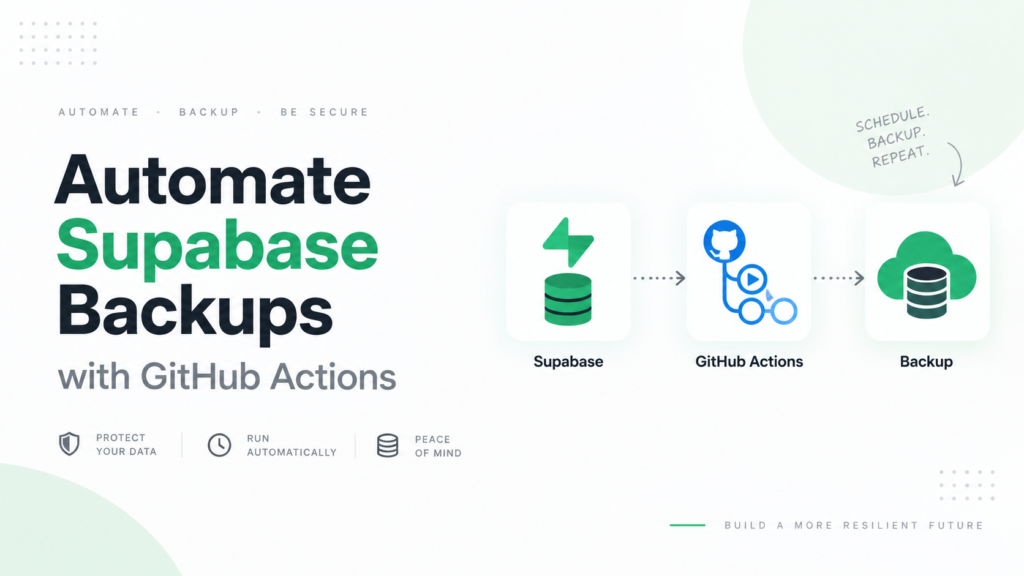
SupaBackup helps you automatically back up your Supabase PostgreSQL database and save the backup files to your own Google Drive.
So instead of building custom scripts, cron jobs, and upload logic, you can connect your Supabase project, connect Google Drive, choose a schedule, and let the backup process run.
For many solo founders, freelancers, and small SaaS teams, this is easier to maintain.
You can also read How to Backup Your Supabase Database Automatically if your main goal is protecting a Supabase project.
What to Check Before Using Google Drive for Database Backups
Google Drive is easy to use, but database backups need careful handling.
Before using Google Drive for PostgreSQL backups, think about these points.
1. Access Control
Do not share backup folders with everyone.
Only give access to people who truly need it.
If your backup contains customer data, emails, payment-related records, or business information, access should be limited.
2. Folder Structure
Create a clear folder structure.
Example:
PostgreSQL Backups / Project Name / Production
If you manage staging and production separately, keep their backups separate too.
3. File Naming
Use names that include project, environment, and date.
This helps you find the correct backup quickly.
4. Restore Testing
Do not assume the backup works.
Test it in a local or staging environment sometimes.
A backup that has never been tested can create problems during recovery.
5. Retention
Decide how long you want to keep old backups.
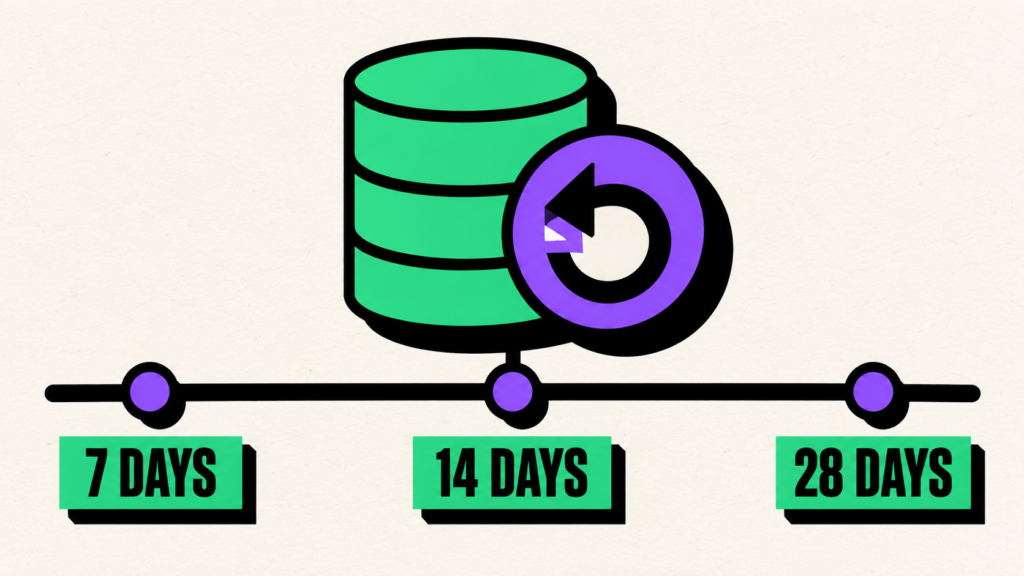
For example, you may keep daily backups for a short period and monthly backups for longer. The right approach depends on your project and compliance needs.
Common Mistakes to Avoid
Here are some mistakes developers often make with PostgreSQL backups.
Mistake 1: Only Creating Backups Before Big Changes
You should definitely create a backup before a major migration or deployment.
But that should not be your only backup.
Regular scheduled backups are safer.
Mistake 2: Using Unclear File Names
A folder full of files named backup.sql is not helpful.
Use clear names with project name and date.
Mistake 3: Not Testing Restore
A backup is not complete until you know it can be restored.
You do not need to test every backup, but you should test the process occasionally.
Mistake 4: Giving Too Much Access
Database backups can expose sensitive data.
Do not share backup folders publicly or with people who do not need access.
Mistake 5: Forgetting About Application Files
Your PostgreSQL backup may not include uploaded files, images, or documents stored outside the database.
If your app uses external file storage, create a separate plan for those files.
When Is Google Drive a Good Backup Storage Option?
Google Drive can be a good backup storage option when:
- You are a solo developer
- You run a small SaaS product
- You manage client projects
- You want simple backup access
- Your team already uses Google Workspace
- You want a separate copy outside your app platform
- You do not want to manage complex storage infrastructure yet
It may not be enough for every large enterprise system, but for many early-stage and growing projects, it is a practical place to start.
The important thing is to keep the process organized and secure.
How SupaBackup Helps Supabase Users
SupaBackup is built for developers who use Supabase.
Since Supabase projects use PostgreSQL, your database backup strategy still matters.
SupaBackup helps by saving automatic Supabase database backups to your own Google Drive.
This is useful if you want:
- Automatic scheduled backups
- Google Drive storage
- A simple backup workflow
- Less manual work
- Backup files you control
- A safer recovery process for your Supabase app
If you are running a Supabase SaaS app, you should also read Supabase Backup Best Practices for SaaS Apps to build a stronger backup habit.
And if something goes wrong, How to Restore a Supabase Database Backup Safely explains what to check before restoring data.
Final Thoughts
Backing up PostgreSQL to Google Drive can be a simple and practical way to protect your data.
The goal is not just to create a backup file. The goal is to build a process you can trust.
A good backup process should be automatic, organized, secure, and easy to restore from.
If you are using Supabase, SupaBackup makes this easier by automatically saving your Supabase PostgreSQL backups to your own Google Drive.
That means you do not need to depend on manual exports or scattered backup files.
Your database is one of the most valuable parts of your app.
Protect it before you need to recover it.