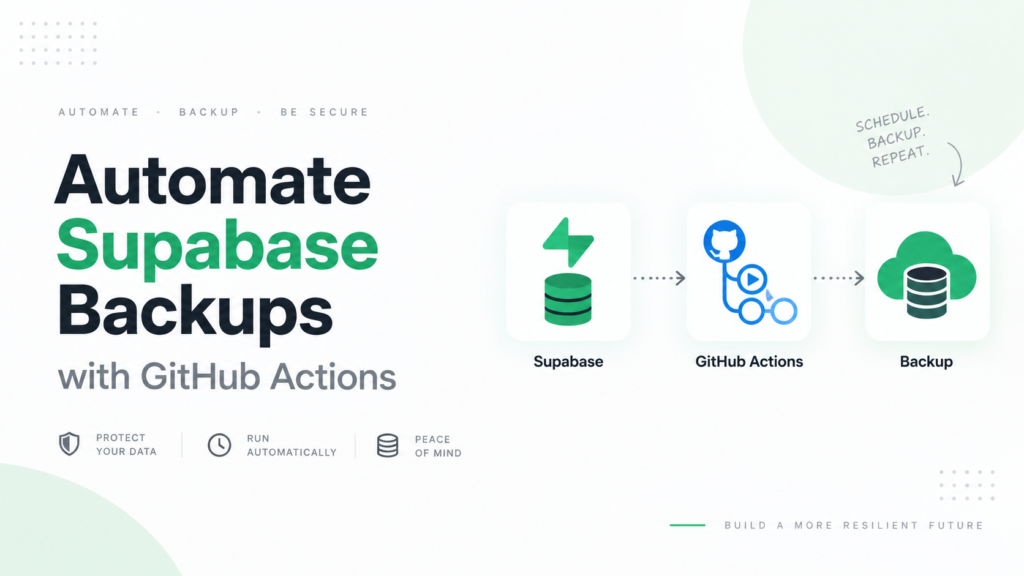
There are several reasons you may need to export a Supabase database.
You may want to create a backup, move data to another project, inspect production data locally, prepare for a migration, or keep an independent copy outside Supabase.
However, not every export method produces the same result.
Downloading one table as a CSV is useful for reporting, but it is not a complete database backup. A schema export may contain your tables and functions but no records. A full logical export may still exclude uploaded files, Edge Functions, and project settings.
This guide compares the main ways to export a Supabase database and explains which method to use for each situation.
Choose the Export Based on Your Goal
Before running any command, decide what you actually need.
| Goal | Best export method |
|---|---|
| Download records from one table | CSV export |
| Save database structure | Schema dump |
| Back up roles, schema, and records | Supabase CLI |
| Move to another PostgreSQL database | Logical SQL export |
| Keep scheduled copies in Google Drive | Automatic backup |
| Protect uploaded files | Separate Storage export |
A full database export is not always necessary. But when you need recovery or migration, exporting only one table is usually not enough.
Method 1: Export Selected Data as CSV
CSV is the simplest option when you need records from one table or query.
For example, you may want to export:
- Customers
- Orders
- Newsletter subscribers
- Product records
- Reports
- Auth users
- Application activity
You can run a query in the Supabase SQL Editor and download the returned data as CSV.
A basic query may look like this:
SELECT *
FROM public.customers
ORDER BY created_at DESC;
For a smaller export, select only the columns you need:
SELECT id, name, email, created_at
FROM public.customers;
CSV works well for analysis, reporting, spreadsheets, and transferring selected records.
However, CSV does not normally preserve:
- Table definitions
- Relationships
- Indexes
- Triggers
- Database functions
- Row Level Security policies
- Roles and privileges
That makes CSV a data export, not a complete recovery backup.
Use CSV when you need readable table data. Use a logical database dump when you need to recreate the database.
Method 2: Export With the Supabase CLI
The Supabase CLI is the better option for creating a portable logical export.
The supabase db dump command uses PostgreSQL’s dump tools with filtering designed for Supabase projects.
Before starting, you generally need:
- The Supabase CLI
- Docker or another supported container runtime
- Your database connection string
- Your database password
- A secure destination for the files
You can either link the local project to Supabase or pass the database URL directly.
Export the Database Schema
The default dump exports the database structure rather than all table records:
supabase db dump \
  --db-url "$SUPABASE_DB_URL" \
  -f schema.sql
This export may include your application tables, functions, policies, indexes, and other schema objects.
It is useful for:
- Recreating database structure
- Reviewing production schema
- Moving schema to another project
- Keeping a structure snapshot before changes
A schema dump alone does not protect your application records.
Export Database Roles
If you created custom database roles, export them separately:
supabase db dump \
  --db-url "$SUPABASE_DB_URL" \
  -f roles.sql \
  --role-only
Roles and passwords need careful handling. Do not commit sensitive database exports or credentials to a public repository.
Export Table Data
Export the database records using --data-only:
supabase db dump \
  --db-url "$SUPABASE_DB_URL" \
  -f data.sql \
  --data-only \
  --use-copy
The --use-copy option uses PostgreSQL COPY statements, which can be more suitable for transferring larger amounts of data.
For a more complete logical export, keep these files together:
supabase-export/
├── roles.sql
├── schema.sql
└── data.sql
Add the project name and export date to the folder:
supabase-export-my-saas-2026-08-04/Clear naming becomes important when you manage multiple projects or keep several historical exports.
Method 3: Use Raw pg_dump
Because every Supabase project includes PostgreSQL, you can also connect with standard PostgreSQL tools.
A basic custom-format export may look like this:
pg_dump \
  "$SUPABASE_DB_URL" \
  --format=custom \
  --file=supabase-database.backup
This can be useful for experienced PostgreSQL users, especially when migrating between PostgreSQL environments.
However, raw pg_dump may include Supabase-managed objects that cause permission or ownership problems during restoration.
The Supabase CLI applies platform-specific filtering, so it is generally the safer starting point for Supabase-to-Supabase exports.
Use raw PostgreSQL tools when you understand exactly which schemas, roles, and objects should be included.
Method 4: Automate the Export
Manual exports work until someone forgets to create them.
For production projects, you can automate database exports with:
- GitHub Actions
- A scheduled server task
- A CI/CD workflow
- A custom backup script
- A managed backup service
A DIY process usually needs to:
- Run the database dump
- Create dated files
- Upload them to secure storage
- Remove old backups
- Report failed exports
- Protect database credentials
- Test restoration occasionally
This gives you control, but it also creates another workflow that your team must maintain.
SupaBackup provides a simpler option for Supabase projects by creating scheduled database backups and sending them to your own Google Drive.
That is useful when you want an independent copy but do not want to manage Docker commands, cron jobs, storage uploads, and backup cleanup yourself.
The guide on how to back up a Supabase database automatically explains that workflow in more detail.
Exporting a Database Is Not the Same as Exporting the Full Project
A logical database export does not contain every part of a Supabase project.
You may still need to handle:
- Supabase Storage files
- Edge Functions
- Auth provider configuration
- API keys and secrets
- Realtime settings
- Database extensions and settings
- External webhooks
- Application environment variables
Storage is especially important.
Your database may contain paths and metadata for avatars, invoices, images, or documents, while the actual files remain inside Storage buckets.
If those files matter, create a separate process using the methods covered in how to back up Supabase Storage files.
Protect Exported Database Files
A database export may contain private customer and business information.
Treat it like production data.
Avoid:
- Uploading dumps to public repositories
- Sending database files through public links
- Leaving exports in your Downloads folder
- Sharing production data with unnecessary team members
- Using production exports as casual demo data
Store exports in a controlled location and limit access to people responsible for backup, migration, or recovery.
If you need production-like data for development, create anonymized test records instead of giving every developer a full production dump.
Test the Export Before Depending on It
An export is only useful if you can restore it.
Test at least one export in:
- A local PostgreSQL database
- A staging Supabase project
- A temporary test environment
Check that:
- Important tables exist
- Records were exported
- Relationships still work
- Functions and policies are present
- The application can connect
- Storage references are understood
Use the database restore testing checklist to document the result.
Do not wait for a production incident to discover that you exported only the schema and forgot the data.
Which Method Should You Use?
Use CSV when you need data from one table.
Use the Supabase CLI when you need a logical export containing your database structure and records.
Use raw pg_dump when you are comfortable managing PostgreSQL schemas and restore behavior.
Use automatic backups when the database is important enough that exporting it should not depend on memory.
For many production Supabase apps, a practical setup is:
- Scheduled automatic database backups
- A manual export before risky migrations
- Separate Storage-file backups
- Secure off-site storage
- Occasional restore testing
Final Thoughts
Exporting a Supabase database is straightforward once you choose the method based on your goal.
CSV is useful for selected records. The Supabase CLI is better for complete logical exports. Raw PostgreSQL tools offer more control, while automated backups provide consistency.
The most important thing is not simply creating a file.
You need to know what the export contains, where it is stored, and whether it can be restored.
For ongoing protection, SupaBackup can automatically export your Supabase database to your own Google Drive. Combine that with a separate Storage backup process and occasional restore testing to build a recovery plan you can actually trust.