Supabase Backups: Best Practices for SaaS Apps

When you are building a SaaS app, your database is not just a technical part of the project.
It is where your users, subscriptions, orders, settings, activities, and business records live. If that data is lost or damaged, the problem is not only technical. It can affect your users, your revenue, and your product’s reputation.
Supabase makes it easier to build apps with PostgreSQL, authentication, APIs, and other backend features. But even with a strong backend platform, every SaaS app still needs a clear backup plan.
Backups are not something you should think about only after your app grows. If your app has real users or important business data, you need a backup strategy early.
In this guide, we will cover practical Supabase backup best practices for SaaS apps, what mistakes to avoid, and how SupaBackup can help you create automatic backups to your own Google Drive.
How Supabase Backups Work
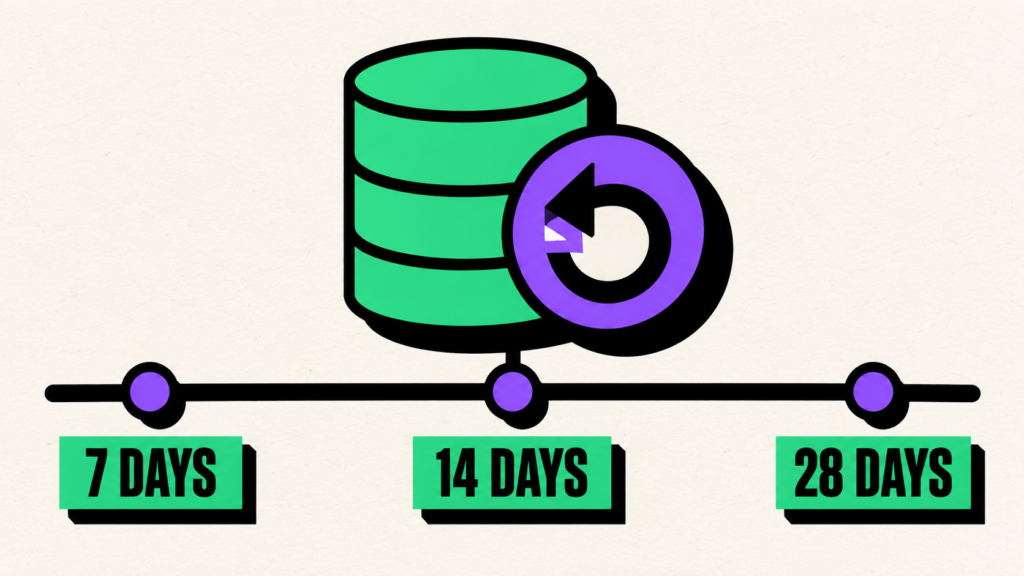
Supabase automatically creates daily database backups for projects on the Pro, Team, and Enterprise plans. The retention period depends on the plan, while Point-in-Time Recovery is available for projects that need more precise restore points.
Free-plan projects do not include the same automatic backup options. If you are using the Free plan, follow our guide on how to back up Supabase on the Free plan to create an independent copy of your database.
It is also important to understand that Supabase database backups do not include the actual files stored through the Storage API. They preserve Storage metadata, but deleted images, documents, videos, and other uploaded files are not restored with the database. Learn how to protect these files in our guide on how to back up Supabase Storage files.
For a reliable SaaS backup strategy, protect both your PostgreSQL database and any important files stored in Supabase Storage.
Why SaaS Apps Need a Strong Backup Plan
A SaaS app depends on trust.
Users trust your product to keep their data safe and available. If something goes wrong, they expect you to recover quickly.
Data problems can happen for many reasons:
- A developer runs the wrong SQL query
- A migration breaks production data
- A bug updates records incorrectly
- An admin deletes something by mistake
- A customer asks for old data
- A table needs to be recovered after a failed change
- A deployment creates unexpected database issues
Many founders only think about backups after something bad happens. But by then, the recovery process becomes stressful.
A good backup plan gives you options.
It helps you answer important questions like:
- Can we recover this data?
- Which backup should we use?
- How recent is the backup?
- Where is the backup stored?
- Can we test it before touching production?
- Who has access to the backup files?
If you cannot answer these questions today, your backup process needs improvement.
1. Do Not Depend Only on Manual Backups
Manual backups are better than no backups, but they are not reliable enough for a serious SaaS product.
At the beginning, you may think:
“I will export the database every week.”
But after a few weeks, it is easy to forget. You get busy with product updates, bug fixes, customers, marketing, and support. Backup tasks slowly move to the bottom of the list.
The problem is simple:
Manual backups depend on memory.
Automatic backups depend on a system.
For a SaaS app, automatic backups are safer because they run on schedule. You do not need to remember every time.
A simple rule:
If losing your database would create a serious problem, your backups should not be manual.
2. Choose a Backup Frequency Based on Risk
Not every SaaS app needs the same backup frequency.
A small internal tool may be fine with weekly backups. But a production SaaS app with daily user activity usually needs more frequent backups.
Think about this question:
How much data can we afford to lose?
If your answer is “one week of data is okay,” then weekly backups may be enough.
But for most SaaS apps, losing even one day of data can be painful.
Here is a simple guide:
- Early-stage side project: weekly backup
- Small SaaS with real users: daily backup
- Client project: daily backup
- Active SaaS with payments or orders: daily or more frequent backup
- Critical business system: advanced recovery planning and more frequent backups
The more important your data is, the shorter your backup gap should be.
3. Store Backups Outside Your Main Platform
A common mistake is keeping all recovery options in one place.
If your app, database, and backups are all inside the same environment, you may have fewer options when something goes wrong.
For a safer setup, keep an extra copy somewhere you control.
For many small teams and indie SaaS founders, Google Drive is a practical storage option because it is simple, familiar, and easy to access.
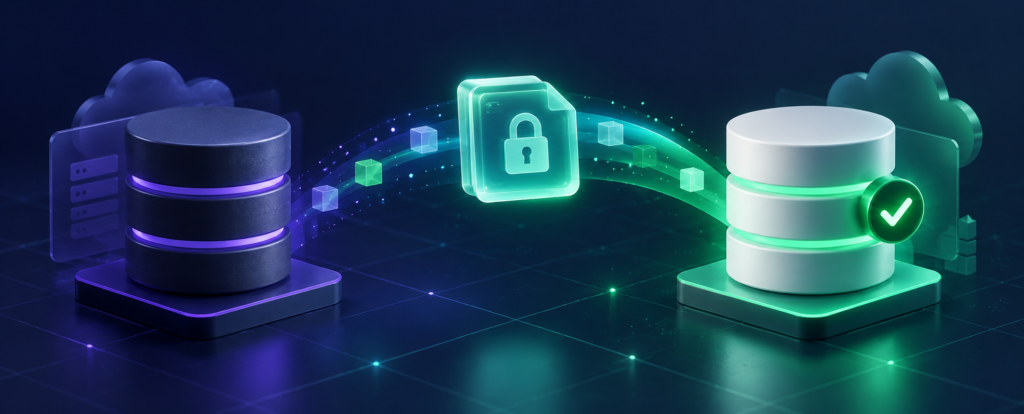
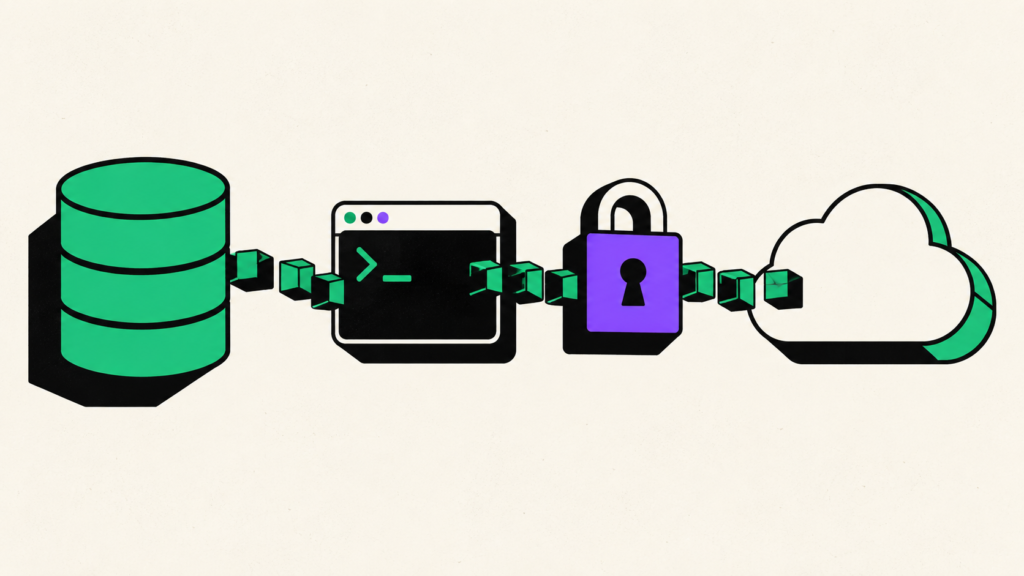
With SupaBackup, your Supabase database backups can be saved directly to your own Google Drive. That gives you a separate copy of your database backup outside your main app workflow.
This does not mean Google Drive replaces every enterprise backup system. But for many SaaS founders, freelancers, and small teams, it creates a simple extra safety layer.
4. Use Clear Backup File Names
During an emergency, unclear file names waste time.
Imagine opening a backup folder and seeing files like:
backup-final.sqlnew-backup.sqldatabase-copy.sqllatest-backup.sql
These names are confusing.
A better backup file name should include:
- Project name
- Environment
- Date
- Time if needed
Example:
supabase-crm-production-2026-06-17.sql
Or:
client-portal-staging-2026-06-17.backup
This makes it easier to find the right backup quickly.
If you manage more than one Supabase project, naming becomes even more important. A clear naming system can prevent you from restoring the wrong backup file.
5. Separate Production and Staging Backups
Production and staging databases should not be mixed randomly.
Your production database contains real business data. Your staging database is usually used for testing.
Keep them clearly separated.
For example:
/SupaBackup/Project Name/Production//SupaBackup/Project Name/Staging/
This simple folder structure helps you avoid confusion.
It also makes backup review easier when you need to inspect old data.
If your SaaS app has multiple environments, your backup structure should reflect that.
6. Do Not Forget About Supabase Storage
A Supabase project can include more than database tables.
Your app may also use Supabase Storage for files such as images, documents, avatars, invoices, or user uploads.
Database backups usually focus on the database itself. That means your database records may be backed up, but your uploaded files may need a separate backup plan.
For example, your database may store a file path like:
/avatars/user-123.png
But if the actual file is deleted from storage, restoring only the database may not bring the file back.
So, if your SaaS app uses Supabase Storage, think about:
- Where uploaded files are stored
- Whether storage files need separate backup
- How database records connect with stored files
- What happens if a file is missing after restore
A complete SaaS backup plan should consider both database data and important file assets.
7. Test Your Restore Process
A backup that has never been tested is only a hope.
You may have backup files, but can you actually restore them?
Testing your restore process helps you confirm:
- The backup file is usable
- The database structure is correct
- Important tables are included
- Data can be inspected safely
- Your team understands the recovery process
You do not need to test every backup every day. But from time to time, restore a backup in a local or staging environment.
This gives you confidence before an actual emergency happens.
The worst time to learn restore steps is during a production issue.
8. Keep Access Limited
Database backups can contain sensitive information.
Depending on your SaaS app, backups may include:
- User profiles
- Emails
- Subscription records
- Orders
- Business data
- Internal settings
- Customer activity
Not everyone on your team should have access to backup files.
Give access only to people who truly need it.
If backups are stored in Google Drive, review folder sharing settings carefully. Avoid public links. Avoid sharing with unnecessary accounts.
A backup is meant to reduce risk, not create a new one.
9. Create a Simple Recovery Checklist
When a database issue happens, people often panic.
A recovery checklist helps your team stay calm.
Your checklist can be simple:
- Identify what went wrong
- Confirm when the issue started
- Find the correct backup
- Restore backup to staging first
- Check the data
- Decide full restore or partial recovery
- Backup current production before changes
- Apply recovery carefully
- Test the app after recovery
- Review why the issue happened
This does not need to be complicated.
Even a short checklist is better than making decisions under pressure.
10. Keep Backups Close to Your Workflow
The easier your backup process is, the more likely you are to maintain it.
If your backup system is too technical or hidden, you may ignore it until something goes wrong.
That is why many small SaaS teams prefer a simple workflow:
Connect Supabase.
Connect Google Drive.
Choose backup schedule.
Let backups run automatically.
SupaBackup is built around this idea.
It helps you create automatic Supabase database backups and save them to your own Google Drive, without needing to maintain custom backup scripts or another server.
For solo founders, freelancers, and small teams, this makes backup management easier to handle.
Common Supabase Backup Mistakes to Avoid
Here are some mistakes that can create problems later.
Mistake 1: Waiting Until After Launch
Do not wait until your product becomes big.
If your app already has users or important test data, start backing it up.
Mistake 2: Keeping Only One Backup
One backup file is not enough.
If that file is old, damaged, incomplete, or created after the issue happened, it may not help.
Mistake 3: Never Testing Restore
Creating backups feels safe, but restore testing proves whether your backup process actually works.
Mistake 4: Giving Too Many People Access
Backup files may contain sensitive data. Access should be limited and reviewed.
Mistake 5: Forgetting Storage Files
If your app uses uploaded files, think beyond database tables. Your storage files may need a separate plan.
A Simple Supabase Backup Strategy for SaaS Founders
If you are not sure where to start, use this simple approach:
- Create automatic daily backups for production
- Store backup files outside your main platform
- Use clear project and date-based file names
- Keep production and staging backups separate
- Limit access to backup folders
- Test restore occasionally
- Write a short recovery checklist
- Review your backup process after major app changes
This is enough for many small SaaS apps to become much safer than relying on manual exports.
As your product grows, you can improve your strategy with more advanced recovery planning.
How SupaBackup Helps
SupaBackup is designed for developers and small teams using Supabase.
It helps you automatically back up your Supabase database and store backup files in your own Google Drive.
This is useful if you want:
- Scheduled Supabase backups
- A copy stored outside your main app
- Simple Google Drive access
- Less manual work
- A backup workflow that is easy to understand
- A safer setup for your SaaS project
SupaBackup is not about making backups complicated.
It is about making them easier to remember, easier to access, and easier to manage.
Final Thoughts
A SaaS app without a backup plan is always one mistake away from a serious problem.
Supabase gives developers a powerful backend, but you still need to think carefully about your own recovery process.
The best backup strategy is simple:
Back up automatically.
Store backups somewhere you control.
Keep files organized.
Test restore before an emergency.
Limit access to sensitive backup files.
If you are building a SaaS app with Supabase, do not treat backups as a future task.
Set up a reliable backup workflow early.
SupaBackup can help you save automatic Supabase database backups to your own Google Drive, so you always have a recent copy when you need it.
Protect your database before you need to recover it.