Supabase’s Free plan is an excellent way to build prototypes, personal projects, and early-stage SaaS products.
However, there is one important limitation: Free plan projects do not receive the same automatic daily database backups available on paid plans.
This means you need to create and store your own backups.
Waiting until your project becomes profitable is risky. A failed migration, incorrect SQL query, accidental deletion, or broken import can destroy useful data long before you upgrade.
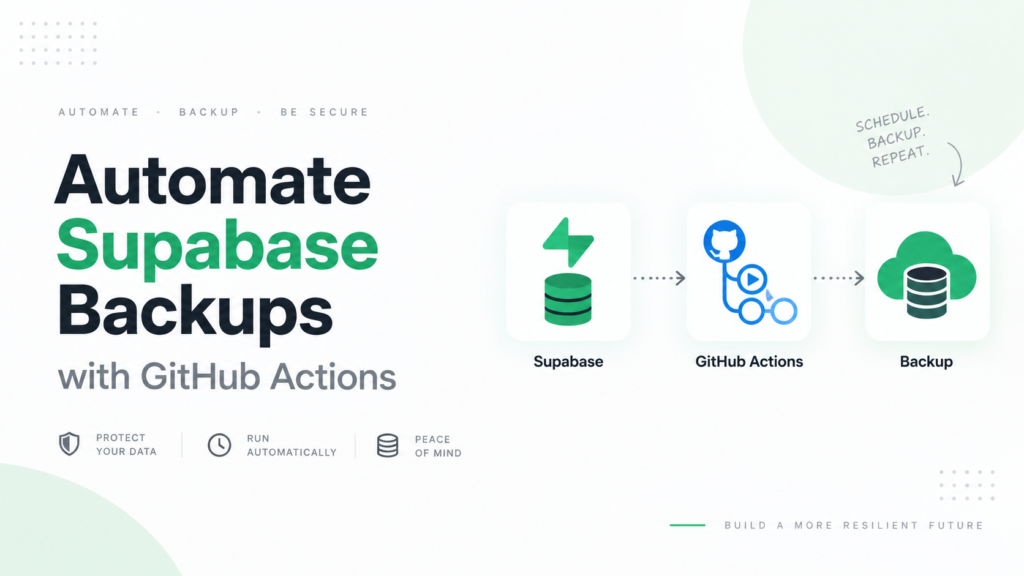
The good news is that you have several ways to protect a Free plan project. You can create manual exports with the Supabase CLI, build your own scheduled workflow, or use SupaBackup to automate the process.
What Does a Supabase Backup Protect?
Every Supabase project includes a PostgreSQL database.
A database backup can protect important information such as:
- Application tables and records
- User-related database data
- Row Level Security policies
- Database functions
- Triggers and indexes
- Relationships between tables
- Custom schemas and roles
However, the database and Supabase Storage are separate.
If users upload avatars, PDFs, product images, invoices, or documents, those files are stored as Storage objects. A database dump may preserve their paths and metadata, but it does not include the actual files.
You need one process for your PostgreSQL database and another for your Storage buckets. Our guide on how to back up Supabase Storage files explains the file side separately.
Option 1: Create a Manual Backup With the Supabase CLI
The official Supabase CLI is the most direct free method.
You will need:
- Supabase CLI
- Docker
- Your project’s database connection string
- Your database password
- A secure local folder for the exported files
From your Supabase dashboard, open the Connect panel and copy the Session pooler connection string. The direct connection may also work when your network supports IPv6, but the Session pooler is generally the easier option.
Store the connection string in an environment variable rather than typing it into scripts repeatedly:
export SUPABASE_DB_URL="your-database-connection-string"Never commit this value to GitHub or expose it in frontend code. It contains sensitive database credentials.
Next, export the roles, schema, and data separately:
supabase db dump \
  --db-url "$SUPABASE_DB_URL" \
  -f roles.sql \
  --role-only
supabase db dump \
--db-url "$SUPABASE_DB_URL" \
-f schema.sqlsupabase db dump \
--db-url "$SUPABASE_DB_URL" \
-f data.sql \
--use-copy \
--data-only \
-x "storage.buckets_vectors" \
-x "storage.vector_indexes"You should now have separate files for your database roles, structure, and data.
Move these files to a secure off-site location such as Google Drive or private cloud storage. Do not leave your only backup on the same laptop you use for development.
Use a dated folder or filename:
supabase-backups/
└── my-project/
    └── 2026-08-02/
        ├── roles.sql
        ├── schema.sql
        └── data.sql
This method works, but you must remember to repeat it regularly.
Option 2: Automate the CLI Backup
If you are comfortable with automation, you can run the same CLI commands with:
- GitHub Actions
- A server cron job
- A scheduled CI/CD pipeline
- A local scheduled task
The workflow can run daily or weekly, create the export files, and send them to private off-site storage.
This is more reliable than remembering manual exports, but you become responsible for the entire system.
You need to handle:
- Secret database credentials
- Failed backup alerts
- Secure backup storage
- File naming
- Retention and cleanup
- Storage limits
- Restore testing
- Updating scripts when something changes
Never commit production database dumps to a public repository. Even a private repository may not be the ideal long-term location for growing database files.
DIY automation is suitable when you enjoy managing infrastructure and want full control. But for a small team, maintaining another backup workflow can become unnecessary work.
The comparison in Manual vs Automatic Database Backups can help you decide whether a custom process is worth maintaining.
Option 3: Use SupaBackup
SupaBackup offers a simpler option for developers who do not want to manage CLI commands, scheduled scripts, or backup servers.
The workflow is straightforward:
- Connect your Supabase database
- Connect your Google Drive
- Select a backup schedule
- Let SupaBackup create the backups automatically
Your backup files are sent to your own Google Drive, giving you an independent copy outside your Supabase project.
SupaBackup’s Free plan is suitable for early projects that need weekly backups. As the project gains real users or starts changing daily, you can move to a more frequent schedule.
This is especially useful for:
- Indie hackers
- Student projects becoming real products
- Freelancers managing client apps
- Early-stage SaaS founders
- Developers who do not want to maintain cron jobs
- Teams that already use Google Drive
SupaBackup focuses on making database backup routine instead of something you need to remember manually.
How Often Should You Back Up a Free Project?
The correct schedule depends on how much data you can afford to lose.
Use this as a starting point:
| Project type | Suggested frequency |
|---|---|
| Learning project | Before important changes |
| Personal prototype | Weekly |
| App with test users | Weekly or daily |
| Early SaaS with real users | Daily |
| App handling orders or payments | Daily or stronger protection |
A useful question is:
If the database failed today, how much recent work would I be willing to recreate?
If losing one week would be painful, a weekly backup is not enough.
Before migrations, imports, bulk updates, or destructive SQL operations, create an additional fresh backup even if you already have scheduled backups.
Do Not Assume the Backup Works
Creating an SQL file is not the final step.
You should occasionally restore a backup into a local PostgreSQL database, staging project, or separate test project.
Confirm that:
- The files can be opened
- Important tables are present
- Application data is available
- RLS policies and functions exist
- Your application can connect
- The restore process is documented
- Storage-file references still make sense
A backup that has never been restored is not fully proven.
Use the database restore testing checklist to test your first export before your project becomes important.
A Simple Free Plan Backup Routine
For most early Supabase projects, this routine is enough:
- Create an automatic weekly backup
- Store it outside Supabase
- Use project names and dates in backup folders
- Create a fresh backup before migrations
- Protect database credentials
- Back up Storage files separately
- Test one restore
- Move to daily backups when real users arrive
The routine is simple, but it protects you from the most common mistake: assuming you can recover without confirming it.
Final Thoughts
You can safely back up a Supabase Free plan project, but you need to set up the process yourself.
The Supabase CLI gives you full control and costs nothing, although it requires manual work or custom automation. SupaBackup is the easier option when you want scheduled database backups delivered directly to your own Google Drive.
Whichever method you choose, start before your project contains valuable data.
Do not wait for a failed migration or accidental deletion to create your first backup. Export the database, store it somewhere independent, and test that you can restore it.
A free project can still contain important data.
Treat it that way.