Database Disaster Recovery Plan for SaaS Startups
Most SaaS startups do not think about disaster recovery until something breaks.
That is understandable.
When you are building a product, your mind is usually on features, users, pricing, onboarding, bugs, and growth. Backup planning feels like something you can do later.
But database problems do not wait for the perfect time.
A failed migration, wrong SQL query, deleted records, broken import, or production bug can damage important data quickly. If your startup does not have a recovery plan, the team may panic and make the situation worse.
A database disaster recovery plan does not need to be complicated.
For an early-stage SaaS startup, the goal is simple:
Know what data matters, back it up regularly, store backups safely, test recovery, and write down what to do when something goes wrong.
This guide explains how to create a simple database disaster recovery plan for your SaaS startup.
If you are still building your backup foundation, start with this database backup checklist for SaaS founders first.
What Is Database Disaster Recovery?
Database disaster recovery is the process of getting your data and application back to a usable state after something goes wrong.
A “disaster” does not always mean a huge outage.
For a SaaS startup, a database disaster can be something simple but painful:
- A developer deletes the wrong records
- A migration changes production data incorrectly
- A bug updates many rows by mistake
- A customer’s workspace data disappears
- A payment-related table becomes inconsistent
- A database import overwrites useful data
- A backup exists, but nobody knows how to restore it
The main point is this:
A backup file alone is not a disaster recovery plan.
A real recovery plan explains what to do with that backup, who is responsible, where to test it, and how to reduce damage.
Why SaaS Startups Need a Recovery Plan Early
Many founders think disaster recovery is only for large companies.
That is a mistake.
Startups need recovery planning because they usually have less room for error.
A big company may have a dedicated infrastructure team. A small SaaS startup may have one founder, one developer, or a tiny team managing everything.
If something breaks, there may be no backup engineer waiting to help.
A simple recovery plan helps you avoid questions like:
- Where is the latest backup?
- Who has access to it?
- Is the backup from before or after the mistake?
- Should we restore the whole database or only some records?
- Can we test the backup before touching production?
- What should we tell users if data is affected?
When you already have answers, recovery becomes calmer.
The Difference Between Backup and Disaster Recovery
Backup and disaster recovery are related, but they are not the same.
A backup is a copy of your data.
Disaster recovery is the full process of using that copy to recover safely.
For example, your startup may have a daily database backup. That is good.
But if nobody has tested restore, nobody knows where the file is stored, and nobody knows who should approve a production restore, then recovery will still be messy.
A simple way to think about it:
Backup answers: “Do we have a copy of the data?”
Disaster recovery answers: “Can we use that copy safely when something goes wrong?”
Both matter.
If you are using Supabase, read How to Restore a Supabase Database Backup Safely to understand the recovery side before making production changes.
Step 1: Identify Your Critical Data
Start by deciding which data is most important.
Not all database tables have the same value.
For a SaaS app, critical data may include:
- Users
- Teams or workspaces
- Subscriptions
- Billing records
- Orders
- Customer settings
- Project records
- Permissions
- Activity history
- API tokens or integration records
- Audit logs
- Business reports
Ask this question for every major table:
If this data disappeared today, what would happen?
If users would lose trust, payments would break, or your team would not be able to recover manually, that data is critical.
Your recovery plan should focus on critical data first.
Step 2: Choose Your Recovery Goals
Before a real incident happens, decide what “acceptable loss” means for your startup.
There are two simple ideas to understand.
Recovery Point
This means how much data you can afford to lose.
For example, if your last backup was 24 hours ago, you may lose up to one day of data after a full restore.
For a small internal tool, that may be acceptable.
For a SaaS app with daily payments, customer activity, or business records, losing one full day may be too much.
Recovery Time
This means how quickly you need to get the system working again.
Some apps can be down for a few hours without major damage. Others need faster recovery.
You do not need enterprise-level language to start.
Just write simple goals like:
- We should never lose more than 24 hours of production database changes.
- We should be able to access the latest backup within 10 minutes.
- We should test restore before making production recovery decisions.
- We should have one person responsible for coordinating recovery.
Clear goals help you choose the right backup frequency and process.
Step 3: Set Up Automatic Database Backups
Manual backups are useful before risky changes, but they should not be your main recovery plan.
Manual backups depend on someone remembering to do the work.
Automatic backups give you a more reliable baseline.
For most SaaS startups, daily backups are a good starting point. If your app has frequent user activity, payments, orders, or important business records, you may need more frequent backups.
If your database is PostgreSQL, backup tools like pg_dump are commonly used to export database data. You can read more about PostgreSQL’s official backup methods in the PostgreSQL backup and restore documentation.
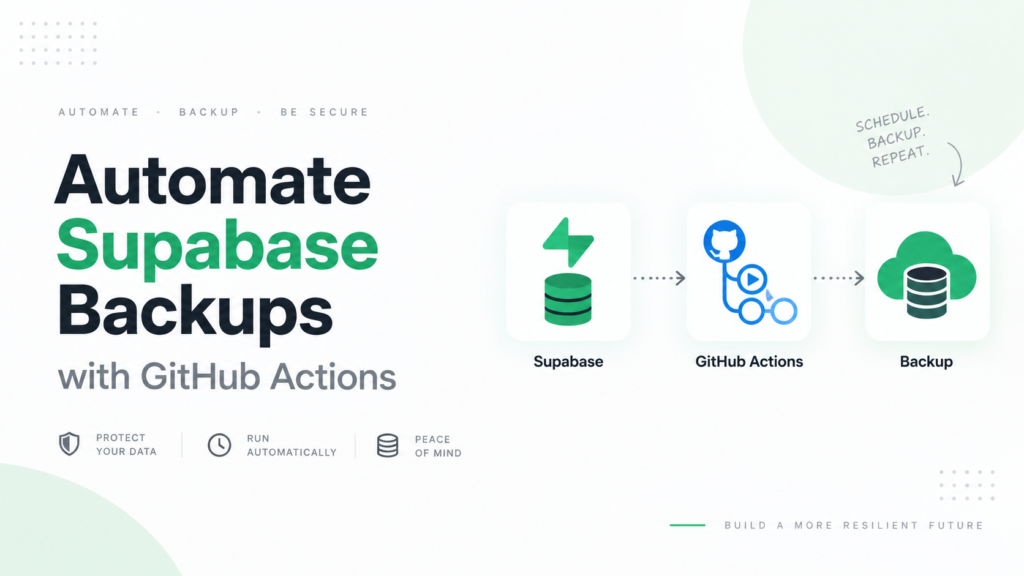
If you are using Supabase, SupaBackup helps you automatically back up your Supabase database and save the backup files to your own Google Drive. That gives your startup a separate copy outside the main app workflow.
For a more detailed comparison, read Manual vs Automatic Database Backups: Which One Is Better?.
Step 4: Store Backups Somewhere You Control
A backup should be easy to find when the team needs it.
If backup files are scattered across laptops, servers, email threads, and personal folders, recovery becomes confusing.
Choose one clear storage location.
For many small SaaS teams, Google Drive is practical because it is familiar and easy to organize. Your team can create project folders, limit access, and find files quickly.
A simple folder structure can look like this:
Database Backups / Product Name / Production
Database Backups / Product Name / Staging
Database Backups / Product Name / Manual Before Migrations
If you use Supabase, SupaBackup can save automatic Supabase database backups to your own Google Drive. If your project uses PostgreSQL directly, this guide on how to backup PostgreSQL to Google Drive explains the idea in more detail.
The goal is not only storage.
The goal is fast, clear access during recovery.
Step 5: Use Clear Backup Names
During a database issue, unclear file names waste time.
Avoid names like:
backup.sqlfinal.sqllatest-backup.sqlnew-copy.sql
These names may make sense for one day, but they become confusing later.
Use names that include:
- Product name
- Environment
- Date
- Time if needed
Example:
acme-crm-production-2026-06-29.sql
Or:
billing-platform-production-2026-06-29-0900.backup
This makes it easier to choose the correct backup without guessing.
If your startup has more than one database or project, clear names are even more important.
Step 6: Do Not Forget File Storage
Many SaaS apps store more than database records.
Your app may also store:
- User avatars
- Uploaded documents
- Product images
- PDFs
- Invoice files
- CSV exports
- Customer attachments
A database backup may store references to these files, but not always the files themselves.
For example, your database may contain:
/uploads/customer-report-123.pdf
But if the actual file is deleted from storage, restoring the database row may not restore the PDF.
Supabase explains in its database backup documentation that database backups do not include objects stored through the Storage API. The database includes metadata about those objects, but deleted storage objects are not restored by restoring an old database backup.
So your disaster recovery plan should include two parts:
- Database recovery
- File storage recovery
If your SaaS app depends on uploaded files, ignoring storage can create a broken restore.
Step 7: Limit Backup Access
Database backups can contain sensitive information.
They may include user emails, private records, billing details, customer settings, internal notes, or business activity.
Do not give everyone access to backup files.
Use a simple rule:
Only people who need backup access should have it.
If you store backups in Google Drive:
- Avoid public sharing links
- Review folder permissions
- Remove old team members
- Use separate folders for production and staging
- Do not share production backups casually
- Keep access limited to trusted people
A backup should reduce risk, not create another security problem.
Step 8: Test Restore Before an Emergency
This is one of the most important parts of disaster recovery.
A backup that has never been tested is uncertain.
You may think you are safe because backup files exist, but you do not know if they can be restored correctly.
From time to time, restore a backup in a safe place:
- Local database
- Staging environment
- Separate test project
Check:
- Are the expected tables there?
- Is important data available?
- Can the app connect to the restored database?
- Are file references still valid?
- Are roles, permissions, and important settings working?
- Is the backup from the expected date?
You do not need to test every backup every day.
But your team should test the restore process before a real emergency happens.
Step 9: Create an Incident Checklist
During a database problem, your team needs a calm process.
A simple incident checklist can help.
Use this as a starting point:
- Stop and understand the issue
- Identify when the problem started
- Check which data is affected
- Pause risky jobs, imports, or deployments if needed
- Find the latest safe backup
- Restore the backup to staging or local first
- Compare restored data with production
- Decide full restore or partial recovery
- Back up current production before changing anything
- Apply the recovery plan carefully
- Test the application after recovery
- Review what caused the issue
This checklist is useful because it slows the team down in a good way.
Instead of rushing into production restore, you first understand the problem.
Step 10: Decide Full Restore or Partial Recovery
Not every database issue needs a full restore.
Sometimes a full restore can create more problems because it may remove valid data created after the backup.
For example, imagine a bug deleted 20 customer records at 2 PM.
If your last backup was from midnight, a full restore may recover those 20 customers but remove all valid data created between midnight and 2 PM.
In that case, partial recovery may be safer.
Partial recovery means restoring the backup to a separate environment, finding the missing records, and carefully moving only the needed data back into production.
This is why you should test backups outside production first.
A disaster recovery plan should not assume one solution for every incident.
Step 11: Back Up Current Production Before Recovery
Before making major recovery changes, create a fresh backup of the current production database.
Even if production has a problem, it may still contain useful data.
This gives you another safety layer.
You may need to compare:
- Current production data
- Backup data from before the incident
- Data created after the incident
Recovery is not always about going backward completely.
Sometimes it is about combining the safest parts of old and current data.
Step 12: Communicate Clearly With the Team
In a small SaaS startup, database recovery can affect developers, support, marketing, founders, and sometimes customers.
Your recovery plan should include communication.
At minimum, decide:
- Who leads the recovery?
- Who checks the backup?
- Who approves production changes?
- Who updates the team?
- Who talks to customers if needed?
A simple internal message can prevent confusion:
“We found a database issue affecting project records created today. We are testing the latest safe backup in staging before making production changes.”
Clear communication builds trust inside the team.
Step 13: Review the Cause After Recovery
After the system is stable, review what happened.
Do not only ask, “Did we recover?”
Ask:
- Why did this happen?
- Was it a code issue?
- Was it a migration issue?
- Was access too open?
- Did we miss a test?
- Was the backup recent enough?
- Was restore easy or confusing?
- What should we change before next time?
This review helps improve your product and your recovery plan.
A good disaster recovery process gets better after every incident.
Simple Disaster Recovery Plan Template
Here is a simple template you can copy into your internal documentation.
Product
Product name:
Production database:
Staging database:
Main backup location:
Backup owner:
Critical Data
Important tables:
Important file storage folders:
Payment or billing data:
Customer data:
Admin-only data:
Backup Schedule
Automatic backup frequency:
Manual backup before migrations: Yes / No
Backup storage location:
Retention period:
Access
Who can access backups:
Who can restore backups:
Who approves production recovery:
Restore Testing
Last restore test date:
Test environment:
Known restore issues:
Incident Steps
- Identify the issue
- Confirm when it started
- Find the latest safe backup
- Restore to staging/local first
- Check important data
- Decide full or partial recovery
- Back up current production
- Apply recovery
- Test the app
- Review the cause
This template is simple, but it is much better than having no plan.
How SupaBackup Helps With Disaster Recovery
SupaBackup helps Supabase users create a more reliable backup foundation.
It automatically backs up your Supabase database and saves the backup files to your own Google Drive.
That helps your disaster recovery plan because:
- You do not depend only on manual exports
- Backups are stored somewhere your team can access
- You can organize backups by project
- You keep a copy outside your main app workflow
- You reduce the chance of having no recent backup
- Recovery planning becomes easier
SupaBackup does not remove the need for smart recovery decisions.
You should still test restore, limit access, and write a simple recovery plan.
But having automatic backups in your own Google Drive gives your startup a stronger starting point.
Final Thoughts
A database disaster recovery plan is not only for large companies.
Every SaaS startup with real users should have one.
Your plan does not need to be complicated. It should simply answer:
What data matters?
Where are backups stored?
How often do backups run?
Who can access them?
How do we test restore?
What do we do when something breaks?
If you can answer those questions, your startup is already in a safer position than many teams.
Start with automatic backups. Store them somewhere you control. Test restore before an emergency. Keep a simple checklist.
If your SaaS app uses Supabase, SupaBackup can help you back up your database automatically to your own Google Drive, giving you a practical recovery layer before you need it.
Do not wait for a database mistake to create your recovery plan.
Build it now.