Why Can’t I Download My Supabase Backup? Physical Backups, PITR & CLI Explained

You open your Supabase dashboard, go to Database → Backups, see that your project has backups available, but there is no obvious option to download the backup file.
Nothing is necessarily wrong.
Supabase has changed how backups work for newer projects. Projects running Postgres 15.8.1.079 or later now use physical backups by default, and these physical backups are designed primarily for restoring a project inside Supabase rather than downloading as a normal database dump.
If you need an actual backup file that you can keep locally, upload to cloud storage, move to another server, or archive independently, you usually need to create a logical backup yourself using the Supabase CLI or PostgreSQL tools.
Here is what that means and how to do it.
Why Your Supabase Backup Has No Download Button
Supabase supports two main kinds of database backups:
- Physical backups
- Logical backups
The difference matters because they serve different purposes.
A physical backup copies the underlying database files and is optimized for restoring the database infrastructure.
A logical backup exports the database structure and data into a portable format that can be moved or restored elsewhere.
Supabase now enables physical backups by default for projects running supported newer Postgres versions. Once a project uses the physical backup system, Supabase no longer generates the old downloadable backup.gz logical backup file.
So if your backup exists but you cannot download it, your project may simply be using physical backups.
Quick answer
Supabase physical backups cannot be directly downloaded.
If you need a downloadable database backup, create a logical backup using:
supabase db dumpor use PostgreSQL’s pg_dump.
For most Supabase projects, the Supabase CLI is the safer option because it applies Supabase-specific filtering during the export process.
Physical vs Logical Supabase Backups
Here is a simple way to understand the difference.
| Backup type | Main purpose | Directly downloadable? | Portable? |
|---|---|---|---|
| Physical backup | Restore inside Supabase | No | Limited |
| PITR backup | Restore to a specific point in time | No | Limited |
| Logical backup | Export and move database data | Yes | Yes |
| Supabase CLI dump | Manual/off-site backup | Yes | Yes |
Physical backups are useful when you simply want Supabase to restore your existing project after a problem.
Logical backups are better when you want independent possession of your database backup.
For example, you may want a logical backup if you need to:
- Keep an off-site database copy
- Store backups in Google Drive
- Migrate between Supabase projects
- Move to self-hosted PostgreSQL
- Inspect a backup locally
- Maintain your own long-term retention policy
Supabase itself recommends that Free Plan projects regularly export their data with supabase db dump and maintain off-site backups.
How to Download a Supabase Backup Using the CLI
The Supabase CLI provides a straightforward way to create a logical database backup.
Supabase’s current migration guidance separates the backup into three parts:
- Database roles
- Database schema
- Database data
This makes the backup easier to restore correctly later.
Step 1: Install the Supabase CLI
You need the Supabase CLI installed on your computer.
You will also need your Supabase database connection string.
You can find it from your Supabase project’s Connect dialog.
Keep your database password private and never commit the connection string to a public GitHub repository.
Step 2: Backup Your Database Roles
Run:
supabase db dump \
  --db-url "[CONNECTION_STRING]" \
  -f roles.sql \
  --role-only
This creates:
roles.sqlThe file contains the database role definitions required during a restore.
Step 3: Backup the Database Schema
Next, export your database structure:
supabase db dump \
  --db-url "[CONNECTION_STRING]" \
  -f schema.sql
This creates:
schema.sqlYour schema contains structures such as tables, functions, policies, indexes, triggers, and other database definitions.
Step 4: Backup Your Data
Finally, export your actual database records:
supabase db dump \
  --db-url "[CONNECTION_STRING]" \
  -f data.sql \
  --use-copy \
  --data-only \
  -x "storage.buckets_vectors" \
  -x "storage.vector_indexes"
You should now have three important files:
roles.sql
schema.sql
data.sql
These form a logical backup of your Supabase PostgreSQL database using the current workflow documented by Supabase.
Why Use supabase db dump Instead of Plain pg_dump?
Supabase is PostgreSQL, so you technically can use PostgreSQL’s standard pg_dump utility.
However, there is an advantage to using Supabase’s CLI.
According to Supabase, supabase db dump runs pg_dump underneath but applies additional Supabase-specific filtering. For example, it excludes certain internal schemas and reserved roles that can otherwise cause permission problems when you restore the database elsewhere.
That makes:
supabase db dumpa good default choice for most Supabase users.
Raw pg_dump can still be useful if you understand exactly which schemas, roles, extensions, and objects you want to include.
What Happens If You Have PITR Enabled?
Point-in-Time Recovery, or PITR, works differently from a downloadable database dump.
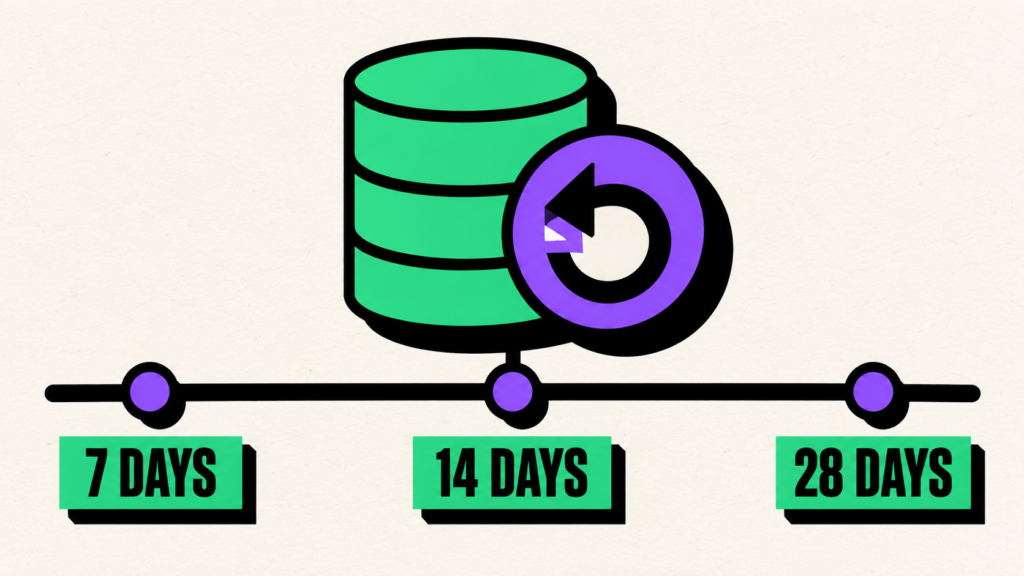
PITR allows you to restore your project to a particular point within the available recovery window. Supabase performs this using physical backups together with PostgreSQL write-ahead log data.
PITR is excellent for situations such as:
- Someone accidentally deletes records at 2:15 PM
- A migration corrupts data
- A deployment introduces a database problem
- You need to return the project to its state before an incident
But PITR should not be confused with having an independent backup file stored somewhere you control.
If physical backups or PITR are enabled, Supabase does not generate the old downloadable logical backup.gz file. To obtain a portable database backup, create your own logical dump with the CLI or pg_dump.
Does a Supabase Database Backup Include Storage Files?
This is another important limitation.
A Supabase database backup does not contain the actual files stored through Supabase Storage.
The database contains metadata describing Storage objects, but the files themselves are stored separately. Restoring the database therefore does not automatically restore files that were deleted from Storage after the backup was created.
If your application allows users to upload:
- Profile images
- Documents
- Product images
- Videos
- PDFs
- Attachments
you should plan a separate backup strategy for those Storage objects.
A database backup alone is not a complete backup of every part of a Supabase application.
Where Should You Store Your Supabase Backup?
Creating a logical backup is only the first step.
Keeping every backup on the same laptop that you use for development gives you another potential point of failure.
A stronger strategy is to maintain an off-site copy.
For example:
Supabase Database
       ↓
Logical Backup
       ↓
Off-site Storage
Your off-site destination might be dedicated cloud storage, object storage, another secured server, or a controlled Google Drive account.
The important part is that the backup exists somewhere separate from the production database.
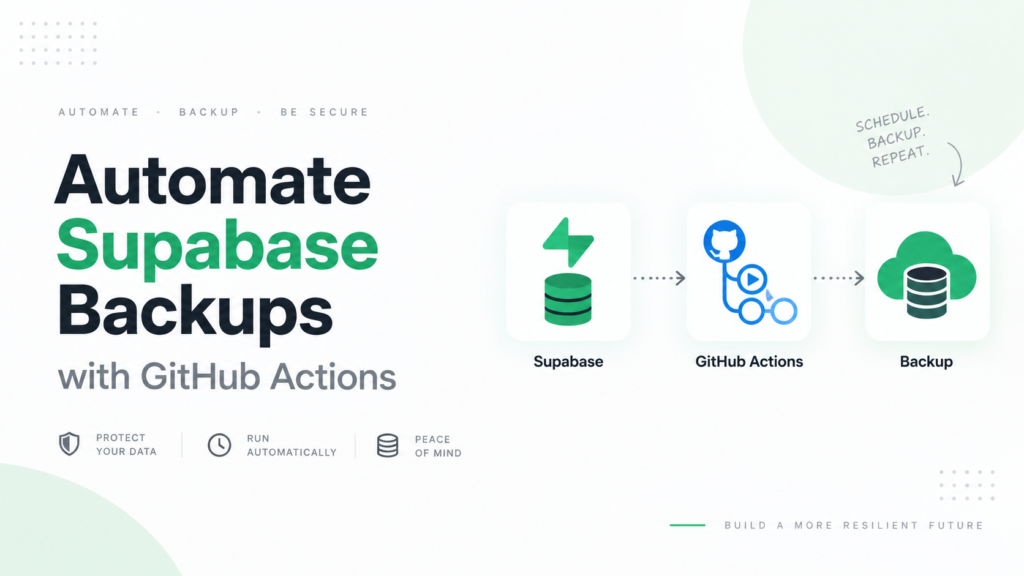
If manually creating and moving database dumps starts becoming repetitive, you can also automate your Supabase database backups rather than relying on yourself to remember every export.
Automating Supabase Backups to Google Drive
Manual backups work, but they have one obvious weakness:
You have to remember to run them.
It is easy to create a backup before a major deployment and then forget about backups for the next three months.
For developers, SaaS founders, freelancers, and small teams that want an additional off-site copy, SupaBackup can automatically back up a Supabase database and send the resulting backups directly to the connected Google Drive account.
A typical workflow becomes:
Supabase
   ↓
Scheduled Backup
   ↓
Google Drive
   ↓
Backup History
This does not mean you should ignore Supabase’s native backups.
They solve different problems.
Supabase’s native physical backups and PITR are valuable for restoring your hosted Supabase project.
An independent logical backup gives you another recovery option and keeps a copy somewhere outside the production platform.
For important projects, having both can provide a more flexible recovery strategy.
Can You Restore the Logical Backup Later?
Yes.
Supabase provides a documented workflow for restoring logical backups into another Supabase project using psql.
A restore can use the three files created earlier:
roles.sql
schema.sql
data.sql
Supabase’s current example restores them in sequence using psql.
Before you ever need an emergency restore, it is worth understanding and testing this process.
If you already have a backup and want to learn the recovery side, read How to Restore a Supabase Database Backup Safely.
A backup you have never tested should not be your only recovery plan.
When Can You Still Download a Backup from Supabase?
There are some situations where Supabase provides downloadable backup files.
For example, older projects using legacy logical backups may still have downloadable dashboard backups.
Supabase also allows certain long-paused projects that can no longer be restored normally through Studio to download their database backup and Storage objects for migration to a new project.
However, this should not be treated as the normal workflow for modern active projects using physical backups.
For those projects, the reliable way to create a portable copy is to generate your own logical backup.
The Best Backup Approach for a Supabase Project
You do not necessarily need to choose between native backups and external backups.
A practical production setup can use multiple layers:
Supabase native backups
Useful for quickly restoring your hosted project.
PITR when necessary
Useful when your application needs finer recovery points.
Logical database backups
Useful for portability and independent retention.
Off-site storage
Useful for keeping copies outside your production database platform.
Storage object backups
Necessary if your application depends on Supabase Storage files.
This gives you more options when something goes wrong instead of depending on one recovery path.
Key Takeaways
If you cannot download your Supabase backup, the most likely reason is that your project is using the newer physical backup system.
Physical backups are intended primarily for restoration within Supabase and cannot be directly downloaded.
If you need an actual portable backup file, use the Supabase CLI to create logical backups of your roles, schema, and data.
The basic workflow is:
supabase db dump --db-url "[CONNECTION_STRING]" -f roles.sql --role-only

supabase db dump --db-url "[CONNECTION_STRING]" -f schema.sql

supabase db dump --db-url "[CONNECTION_STRING]" -f data.sql --use-copy --data-only
Then keep the resulting backup somewhere secure and separate from your production database.
If you would rather not manually run exports and move backup files each time, SupaBackup provides scheduled Supabase database backups directly to your own Google Drive.
The important thing is not simply whether Supabase says a backup exists.
It is knowing what type of backup you have, where it is stored, and how you would recover your data when you actually need it.