Supabase Backup Tools Compared: Native Backups vs CLI vs GitHub Actions vs SupaBackup
There is no single “best” way to back up a Supabase database.
The right option depends on what you actually need.
Do you want to quickly restore your production project?
Do you need a downloadable database copy?
Do you want automatic off-site backups?
Or do you want full control over your own backup scripts?
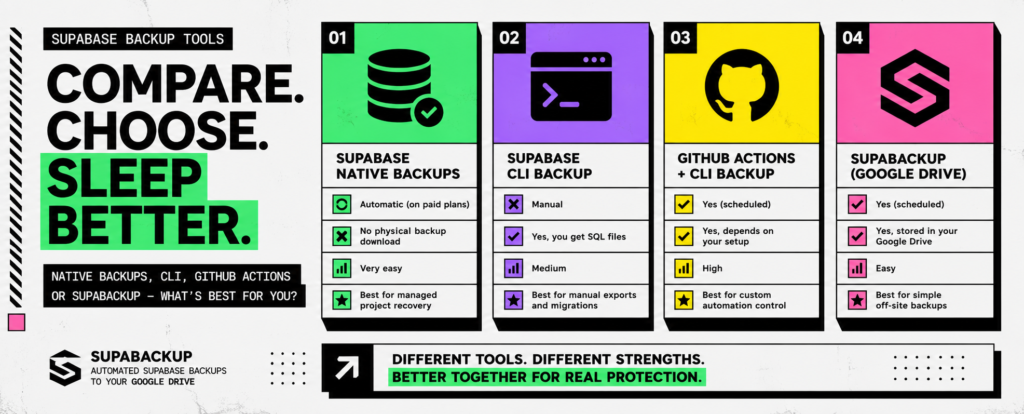
For most Supabase developers, the main options are:
- Supabase native backups
- Supabase CLI
- Supabase CLI + GitHub Actions
- SupaBackup
Here is the quick comparison.
| Backup option | Automatic | Off-site copy you control | Setup difficulty | Best for |
|---|---|---|---|---|
| Supabase native backups | Yes on paid plans | No direct physical-backup download | Very easy | Managed project recovery |
| Supabase CLI | No | Yes | Medium | Manual exports and migrations |
| GitHub Actions + CLI | Yes | Depends on your workflow | High | Developers wanting custom automation |
| SupaBackup | Yes | Yes, Google Drive | Easy | Simple scheduled off-site backups |
The important point is that these options do not all solve exactly the same problem.
Supabase native backups are excellent for managed recovery. CLI backups give you portability. GitHub Actions gives you automation and control. SupaBackup focuses on making scheduled off-site backups simple.
Let’s compare them in more detail.
1. Supabase Native Backups
For many projects, the first backup system you should understand is the one already built into Supabase.
Supabase automatically creates daily database backups for Pro, Team, and Enterprise projects.
Current retention periods are:
| Supabase plan | Daily backup retention |
| Pro | 7 days |
| Team | 14 days |
| Enterprise | Up to 30 days |
Free Plan projects do not receive the same automatic daily backup protection. Supabase recommends that Free Plan users regularly export their databases using supabase db dump and maintain off-site backups.
What native Supabase backups are good at
Their biggest advantage is convenience.
You do not need to:
- Write backup scripts
- Schedule cron jobs
- Configure cloud storage
- Maintain a backup server
- Manually run
pg_dump
You can view available backups from:
Database → Backups
and restore your project from there.
For a production project that needs a straightforward way to recover from a database problem, this is extremely useful.
Physical backups change how this works
Supabase now uses physical backups by default for projects running Postgres 15.8.1.079 or newer.
These physical backups are optimized for restoration inside Supabase.
But there is an important limitation:
You cannot directly download a Supabase physical backup.
If you need your own portable database copy, Supabase tells you to create a logical backup using supabase db dump or pg_dump.
This distinction matters.
Native backups answer:
“How can I restore my Supabase project?”
They do not necessarily answer:
“How can I keep an independent database backup file somewhere I control?”
What about PITR?
Supabase also offers Point-in-Time Recovery (PITR) for Pro, Team, and Enterprise projects as an add-on.
PITR lets you restore the database to a chosen recovery point with up to seconds-level granularity rather than relying only on a daily snapshot.
That can be particularly valuable for databases that change frequently.
For example, if someone accidentally deletes important records at 3:20 PM, restoring yesterday’s backup might lose almost a full day of legitimate activity.
PITR can give you a much more precise recovery point.
Best for
Supabase native backups make the most sense when:
- You are already on a paid Supabase plan
- You primarily want managed disaster recovery
- You want minimal setup
- You do not need your backup file stored outside Supabase
- You want PITR for higher-value production workloads
Main limitation
Your recovery process remains closely tied to the Supabase platform.
If you specifically want a portable backup stored independently, add another backup method.
2. Supabase CLI Backups
The next option is the Supabase CLI.
This gives developers much more control.
The key command is:
supabase db dumpThe CLI runs PostgreSQL’s pg_dump inside a container and adds Supabase-specific exclusions for managed schemas such as auth, storage, and extension-created schemas.
For a complete migration-style backup, Supabase currently documents separate exports for roles, schema, and data.
Back up roles
supabase db dump \
  --db-url "[CONNECTION_STRING]" \
  -f roles.sql \
  --role-only
Back up schema
supabase db dump \
  --db-url "[CONNECTION_STRING]" \
  -f schema.sql
Back up data
supabase db dump \
  --db-url "[CONNECTION_STRING]" \
  -f data.sql \
  --use-copy \
  --data-only \
  -x "storage.buckets_vectors" \
  -x "storage.vector_indexes"
Supabase documents this workflow for creating logical backups that can later be used during migration or restoration.
You end up with:
roles.sql
schema.sql
data.sql
These are files you control.
That is the biggest difference compared with managed physical backups.
Why use the CLI?
Imagine you run a small SaaS product.
You may want a database backup before:
- A major migration
- Importing thousands of records
- Changing important database functions
- Deploying a risky release
- Moving to another Supabase project
- Testing a restore process
The CLI works very well for this.
Run the backup, verify the files, and store them somewhere safe.
Advantages of the Supabase CLI
You get:
- Portable logical backups
- Control over when backups happen
- Files you can store independently
- A useful migration workflow
- No additional backup SaaS required
The problem with manual CLI backups
The CLI itself is not the problem.
The problem is this:
You have to remember to run it.
A developer may create a backup before launch.
Then the product gets busy.
Three months later, the last manual backup is still the one created before launch.
For occasional backups, that may be acceptable.
For a production application, it becomes risky.
Best for
The CLI is a strong option when:
- You are comfortable with terminals
- You need occasional manual backups
- You want portable SQL files
- You need backups before deployments
- You are migrating databases
- You want full control over the process
Main limitation
It does not automatically solve scheduling, storage, monitoring, retention, and failed-job handling.
You have to build those parts yourself or use another tool.
3. Supabase Backups With GitHub Actions
If manual CLI backups are too repetitive, you can automate them.
One option is GitHub Actions.
Supabase officially documents a GitHub Actions workflow that uses the Supabase CLI to export:
- Roles
- Schema
- Data
The workflow can also be scheduled using a cron expression to run automatically.
Conceptually, the process looks like this:
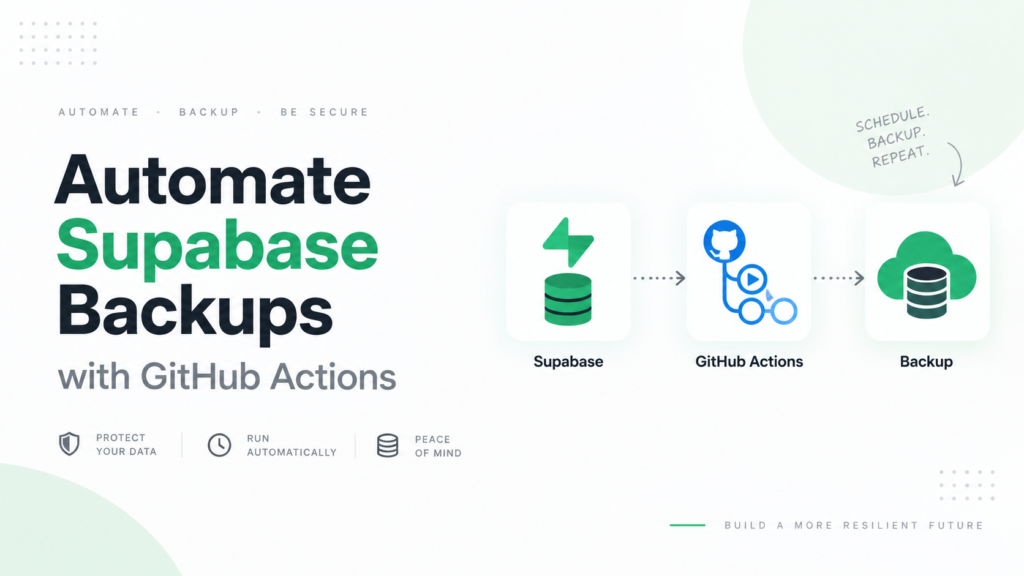
GitHub Actions
      ↓
Supabase CLI
      ↓
Database Dump
      ↓
Backup Destination
This gives developers much more flexibility than a purely manual process.
Why GitHub Actions is attractive
If you already use GitHub for development, you may not need another automation platform.
You can decide:
- How often the workflow runs
- Which commands it executes
- Where backups are sent
- How files are named
- How many backups are retained
- What happens when a job fails
You have almost complete control.
But someone has to build and maintain it
That flexibility comes with responsibility.
A reliable backup workflow may eventually need:
- GitHub Actions YAML
- Database secrets
- Supabase CLI configuration
- Secure backup storage
- Upload scripts
- Retention logic
- Failure notifications
- Credential rotation
- Restore testing
It is completely possible.
But you are now maintaining a small backup system.
Be careful where the backups are stored
Supabase specifically warns:
Never back up production data to a public repository.
A data.sql file may contain:
- Customer emails
- Account information
- Orders
- Payments-related records
- Internal business information
- Application data
- Other sensitive records
That means your storage design matters just as much as the backup command.
Simply creating data.sql every night does not automatically give you a good backup strategy.
You also need to decide where it goes.
Best for
GitHub Actions is ideal when:
- You enjoy building infrastructure
- Your team already uses GitHub Actions
- You want custom schedules
- You need custom storage destinations
- You want full control
- Maintaining the workflow is acceptable
Main limitation
It requires engineering and ongoing maintenance.
For a larger engineering team, that may be completely reasonable.
For an indie hacker or small team, it may be more infrastructure than they want to own.
4. SupaBackup
The fourth option is SupaBackup.
SupaBackup is focused on a narrower problem:
Automatically create Supabase database backups and save them to your own Google Drive.
Instead of writing a scheduled workflow yourself, the basic setup is:
Connect Supabase
       ↓
Connect Google Drive
       ↓
Choose backup schedule
       ↓
Backups run automatically
       ↓
Files appear in your Google Drive
According to the current SupaBackup service, backup files are written directly into the connected Google Drive account rather than being stored permanently by SupaBackup.
That gives it a very different position from Supabase’s native backups.
Native backups are primarily about restoring inside Supabase.
SupaBackup is primarily about keeping scheduled backup files in an external account you control.
Why Google Drive?
Google Drive is not the perfect backup destination for every organization.
Large enterprises may have requirements around dedicated object storage, compliance, encryption controls, geographic regions, immutable backups, or specialized disaster-recovery infrastructure.
But Google Drive can be practical for:
- Indie hackers
- Small SaaS products
- Freelancers
- Agencies
- Client projects
- Small development teams
It gives you a familiar place to find your backup files without maintaining another storage server.
SupaBackup currently requests access only to files it creates in the connected Google Drive rather than general read access to unrelated Drive files.
What SupaBackup removes from the workflow
Compare a custom automation:
Write backup script
      ↓
Configure scheduler
      ↓
Set secrets
      ↓
Configure storage API
      ↓
Upload backups
      ↓
Implement retention
      ↓
Check failures
with:
Connect database
      ↓
Connect Drive
      ↓
Set schedule
The main benefit is not that database dumping is impossible to do yourself.
It isn’t.
The benefit is having fewer backup-related things to maintain.
Current SupaBackup plans
At the time of writing, SupaBackup offers:
Free
- 1 backup job
- Weekly backups
Pro
- 3 backup jobs
- Daily backups
- Retention options for the latest 7, 14, or 30 backups
The current Pro plan is listed at $9/month.
For a developer who could build the automation themselves, the decision becomes:
Is maintaining my own backup automation worth more or less than $9 per month?
For some developers, building it themselves will be the obvious choice.
For others, paying to remove another maintenance task will make more sense.
Supabase Native Backups vs SupaBackup
These two options should not necessarily be considered competitors.
They can complement each other.
Consider this setup:
                    Supabase Database
                          │
            ┌─────────────┴─────────────┐
            ↓                           ↓
   Supabase Native Backup         SupaBackup
            ↓                           ↓
   Managed Supabase Restore       Google Drive Copy
If something goes wrong inside the database, the native Supabase backup may be your fastest way to restore the project.
At the same time, the Google Drive backup gives you another copy outside the managed Supabase backup system.
This is a layered backup approach.
Supabase CLI vs SupaBackup
If you only occasionally need a database export, the CLI is probably enough.
Run:
supabase db dumpwhen necessary and store the result.
You do not necessarily need another service.
SupaBackup becomes more useful when the requirement changes from:
“I need a backup.”
to:
“I want a recent backup to exist without remembering to create it.”
That is an automation problem rather than a database-dumping problem.
GitHub Actions vs SupaBackup
This is probably the most interesting comparison for developers.
Both can automate the process.
But they optimize for different priorities.
| Feature | GitHub Actions | SupaBackup |
| Scheduled backups | Yes | Yes |
| Requires writing workflow | Yes | No |
| Flexible custom logic | Excellent | Limited by product features |
| Storage configuration | You build it | Google Drive built in |
| Maintenance | Your responsibility | Managed |
| Best for | Custom engineering workflows | Simplicity |
Choose GitHub Actions if you want maximum flexibility.
Choose SupaBackup if your preferred workflow is simply:
Supabase → scheduled backup → Google Drive
without maintaining the automation yourself.
Which Supabase Backup Option Should You Choose?
Here is the simplest way to decide.
Choose Supabase native backups if…
Your main requirement is:
“If something breaks, I want Supabase to restore my production database.”
For paid projects, native backups should usually remain part of your recovery strategy.
Choose Supabase CLI if…
Your requirement is:
“I need a portable database export right now.”
It is particularly useful before important changes and during migrations.
Choose GitHub Actions if…
Your requirement is:
“I want automated backups and I am happy to build and maintain the workflow myself.”
This gives you the greatest control.
Choose SupaBackup if…
Your requirement is:
“I want automatic off-site Supabase backups without maintaining backup scripts.”
It is especially suited to developers and small teams already comfortable using Google Drive as their backup destination.
What I Would Use for a Small Production SaaS
For many small production Supabase applications, a sensible setup is not just one tool.
It could be:
1. Keep Supabase native backups enabled
Use them for quick platform-level restoration.
2. Keep an independent backup
Do not make your only recovery option dependent on one backup system.
3. Automate that independent backup
Use either:
GitHub Actions
if you want to own the infrastructure,
or:
SupaBackup
if you prefer a managed Google Drive backup workflow.
4. Create manual backups before risky changes
Even with automatic backups, creating an additional backup before a large migration or destructive operation is a good habit.
5. Test recovery
A backup is only useful if you know how to restore it.
Periodically verify that the files exist, appear reasonable, and can be used in your recovery workflow.
One Important Limitation: Supabase Storage
Whichever database backup option you choose, remember that Supabase database backups do not include the actual files stored using the Storage API.
The database stores metadata about Storage objects, but the objects themselves are separate.
So if your application has:
- Images
- PDFs
- Videos
- User uploads
- Documents
- Attachments
you need to think about Storage backup separately.
Your database backup strategy and your file backup strategy are related, but they are not the same thing.
The Best Supabase Backup Tool Depends on Your Goal
There is no winner for every developer.
Supabase native backups are the easiest option for managed recovery.
Supabase CLI is excellent for portable manual database exports.
GitHub Actions is powerful when you want to build your own automated backup pipeline.
SupaBackup is useful when you want scheduled Supabase backups in your own Google Drive without maintaining the scripts and storage integration yourself.
For many serious projects, the strongest setup is layered:
Supabase Native Backup
        +
Independent Off-site Backup
        +
Tested Restore Process
That gives you more than one way to recover when something goes wrong.
If you want to build the automation yourself, Supabase provides an official GitHub Actions backup workflow.
If you would rather avoid maintaining another workflow, SupaBackup lets you start with a free weekly Supabase backup to your own Google Drive.