Can You Recover a Deleted Supabase Project? What Happens to Your Backups
If you accidentally deleted a Supabase project, the answer is unfortunately straightforward:
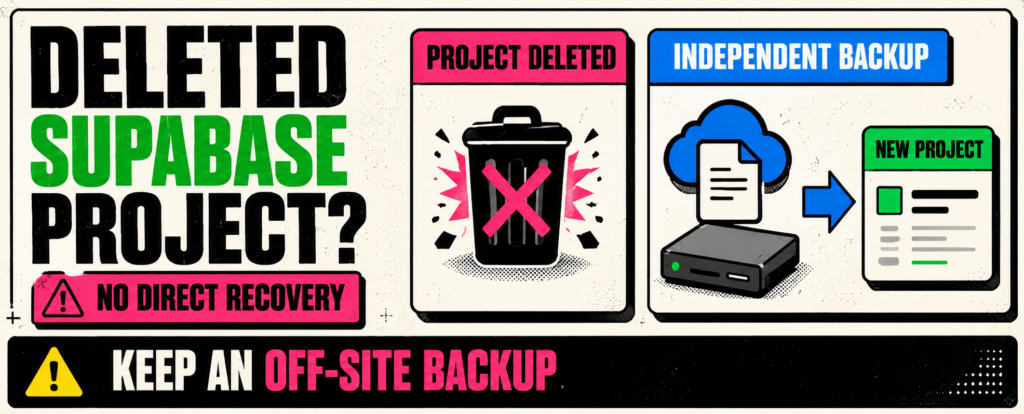
A deleted Supabase project cannot be recovered.
Supabase states that project deletion is permanent and irreversible. When a project is deleted, its database, Storage objects, backups, authentication data, configuration, API credentials, and other project resources are permanently removed.
This also means you cannot simply open Database → Backups and restore the project after deletion. The backups associated with that project are removed as part of the deletion.
If you already maintain an independent database backup outside Supabase, however, you may still be able to create a new Supabase project and restore your data there.
Understanding that distinction can save you from a much bigger problem later.
Can Supabase Recover a Deleted Project?
No.
According to Supabase’s current documentation:
Deleted projects cannot be recovered.
The deletion process permanently removes the resources associated with the project.
This is different from:
- Accidentally deleting database rows
- Dropping a table
- Breaking a migration
- Pausing a Supabase project
- Restoring an older database backup
Those situations may have recovery options.
Deleting the entire project is different because the project’s own recovery infrastructure is removed too.
What Gets Deleted When You Delete a Supabase Project?
Deleting a project removes much more than your PostgreSQL tables.
Supabase currently lists resources including:
- PostgreSQL database and data
- Tables and schemas
- Database records
- Edge Functions
- Supabase Storage objects
- Database backups
- Point-in-Time Recovery snapshots
- Authentication users and sessions
- Auth logs
- Realtime configuration
- API keys
- Service role credentials
- Webhooks
- Custom domains
- SSL certificates
- Project configuration
All of these are associated with the deleted project.
So project deletion should not be treated like deleting a normal application record.
It is closer to removing the entire backend environment.
What Happens to Your Supabase Backups?
This is the part that can surprise developers.
You may think:
“Supabase has automatic backups, so I can just restore the project.”
That is not how deletion works.
Supabase states that when a project is deleted, all associated data is permanently removed, including backups stored by Supabase.
That means your:
- Daily backups
- Physical backups
- PITR recovery data
do not remain available as a recovery path after the project itself has been deleted.
Example
Before deletion:
Supabase Project
     │
     ├── Production Database
     ├── Daily Backups
     ├── PITR Data
     ├── Storage
     └── Auth Data
After permanent project deletion:
Supabase Project
     ↓
DELETED

Database       → Deleted
Backups        → Deleted
PITR           → Deleted
Storage        → Deleted
Auth           → Deleted
Configuration  → Deleted
That is why platform backups and independent off-site backups are not necessarily the same thing.
Does Supabase Keep Deleted Projects for 7 or 30 Days?
No.
This is an easy misunderstanding because Supabase paid plans have backup-retention periods.
For active paid projects, Supabase currently provides:
| Plan | Daily backup history |
|---|---|
| Pro | 7 days |
| Team | 14 days |
| Enterprise | Up to 30 days |
But these periods describe how many backups are available while the project and backup infrastructure still exist.
They do not mean:
“After deleting my project, Supabase will keep it for another 7–30 days.”
Project deletion permanently removes its associated backups.
Deleted Project vs Paused Project: They Are Very Different
This distinction is especially important for Free Plan users.
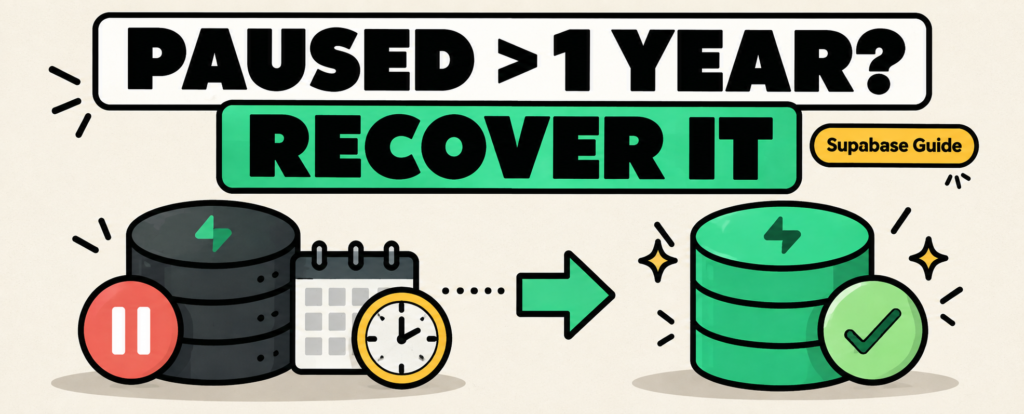
A paused project is not the same as a deleted project.
Supabase currently allows Free projects to be paused. When a project is paused, the data is preserved and the project can normally be resumed rather than permanently destroyed.
Supabase also documents a restore window for paused projects.
Currently, paused projects have a one-year window during which they can be restored through Supabase Studio. After that window, Supabase provides options for downloading available database backup and Storage objects so they can be restored elsewhere.
So:
| Situation | Can it potentially be recovered? |
| Project paused | Yes |
| Database restored from available backup | Yes |
| Deleted rows with a usable backup/PITR | Potentially |
| Entire project permanently deleted | No |
| Independent backup exists elsewhere | Data may be restored into a new project |
If you are simply trying to stop using a project temporarily, pause it instead of deleting it when that option is available.
What If I Accidentally Deleted Only Database Data?
That is a different situation.
Suppose your project still exists, but you accidentally:
DELETE FROM customers;or dropped an important table.
You may still have recovery options.
Paid Supabase projects receive automatic daily backups, and eligible projects can also use Point-in-Time Recovery.
PITR is particularly useful when you need to return the database to a specific time shortly before an accidental operation.
For example:
14:00 → Everything working
14:21 → Bad query executed
14:22 → Thousands of rows deleted
With an appropriate PITR recovery window, you may be able to restore the database to a point before the destructive query.
But this recovery option assumes the Supabase project still exists.
Once the entire project is deleted, its Supabase-managed backup resources are removed too.
Can Supabase Support Restore a Deleted Project?
You should not plan around that possibility.
Supabase’s official documentation explicitly says:
“We cannot recover deleted projects.”
If the project has already been permanently deleted, treat Supabase’s own copy as unavailable.
Your recovery options then depend on whether you maintained anything outside that project.
What If You Have an External Database Backup?
This changes the situation significantly.
Imagine your original project has been deleted:
Old Supabase Project
        ↓
     DELETED
But you previously created:
roles.sql
schema.sql
data.sql
and stored those files somewhere outside Supabase.
You may be able to create a new Supabase project and restore the logical database backup into it.
The process becomes:
Independent Backup
        ↓
Create New Supabase Project
        ↓
Restore Roles
        ↓
Restore Schema
        ↓
Restore Data
        ↓
Reconfigure Application
Supabase documents CLI-based backup and restore workflows using PostgreSQL tools such as psql.
This will not magically recreate every part of the deleted project, however.
You may still need to configure other services manually.
A Database Backup Does Not Back Up Everything
This is another common misconception.
Even if you have a PostgreSQL database dump, that does not necessarily mean you have a complete copy of your Supabase application.
A Supabase project includes several components outside the main database backup.
Supabase Storage
Supabase database backups do not contain the actual files stored using the Storage API.
The database includes metadata about those objects, but the underlying files are separate.
For example:
Database
├── users
├── orders
├── invoices
└── storage metadata

Storage
├── profile-photo.jpg
├── invoice.pdf
├── attachment.zip
└── product-image.webp
Backing up the database does not automatically back up those four files.
If the entire project is deleted, Storage objects are permanently removed too.
Edge Functions
Deployed Edge Functions are also removed when the project is deleted.
Your function source code should ideally already exist in your Git repository rather than only in the deployed environment.
Authentication
Project deletion removes authentication information, including user accounts, sessions, and auth logs.
Depending on the backup and restoration method you use, authentication recovery can require additional planning.
Project configuration
You may also need to recreate settings such as:
- OAuth providers
- Custom domains
- API keys
- Webhooks
- Realtime settings
- Network restrictions
- Environment variables
- Application integrations
This is why disaster recovery needs to consider the application, not just data.sql.
What Should You Back Up Before Deleting a Supabase Project?
If you intentionally plan to delete a project, create an independent recovery path first.
1. Create a logical database backup
Supabase supports creating logical database backups with:
supabase db dumpFor a fuller migration workflow, roles, schema, and data can be exported separately.
For example:
supabase db dump \
  --db-url "[CONNECTION_STRING]" \
  -f roles.sql \
  --role-only
Then:
supabase db dump \
  --db-url "[CONNECTION_STRING]" \
  -f schema.sql
And your data:
supabase db dump \
  --db-url "[CONNECTION_STRING]" \
  -f data.sql \
  --use-copy \
  --data-only \
  -x "storage.buckets_vectors" \
  -x "storage.vector_indexes"
Supabase documents this roles/schema/data workflow for migration and restoration.
2. Back up Storage objects separately
If your project uses Supabase Storage, download important objects before deleting the project.
Supabase specifically recommends backing up important Storage files before project deletion.
3. Keep your Edge Functions in source control
Your deployed functions disappear with the project.
Keep the source in GitHub, GitLab, or another controlled repository.
4. Document project configuration
Record settings that may need to be recreated, including:
- Authentication providers
- Database policies
- Webhooks
- Custom domains
- Integrations
- Network configuration
5. Verify your backup before deletion
Do not wait until after deleting the production project to discover:
data.sql = 0 KBor that your Storage files were never copied.
Check your backup and, for important projects, test restoration before deleting anything.
Why an Off-Site Supabase Backup Matters
Consider two backup approaches.
Only Supabase-managed backups
Supabase Project
      ↓
Supabase Backup
This is convenient for restoring an active project.
But the project and its managed backups belong to the same platform lifecycle.
Delete the project and the associated Supabase backups are removed.
Now compare that with:
Supabase Project
      │
      ├── Supabase Native Backup
      │
      └── Independent Backup
                ↓
           Google Drive
If the Supabase project is accidentally deleted, the independent copy remains separate from that deletion event.
That is one reason developers may choose to maintain an off-site logical backup in addition to Supabase’s native recovery system.
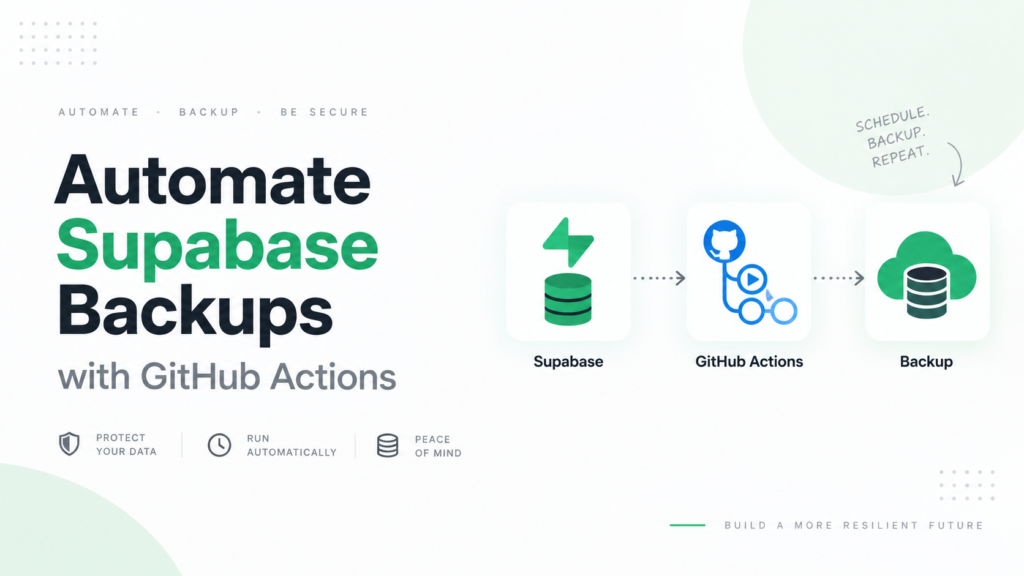
Automating Independent Supabase Backups
You can create logical backups manually using the Supabase CLI.
For occasional backups, that can be completely sufficient.
The challenge is remembering to do it repeatedly.
For example:
January → Manual backup ✓
February → Forgot
March → Forgot
April → Project accidentally deleted
The backup technically existed.
It was simply three months old.
If you prefer to automate this process, SupaBackup creates scheduled Supabase database backups and stores them in the Google Drive account you connect.
That creates a separate recovery layer:
Supabase
    ↓
Scheduled Backup
    ↓
Your Google Drive
This does not replace every part of Supabase’s native recovery system.
Instead, it gives you an independent database copy outside the Supabase project’s own backup lifecycle.
You can also learn more about automating Supabase database backups if you are deciding between manual and scheduled backups.
Before Clicking “Delete Project”
A simple pre-deletion checklist can prevent a permanent mistake:
- Confirm you really need deletion instead of pausing
- Create a current database backup
- Verify the backup files
- Back up Supabase Storage separately
- Confirm Edge Function source exists elsewhere
- Document Auth and project configuration
- Check external integrations
- Confirm no production application still uses the project
- Store your backups somewhere outside the project
- Have another team member review the deletion if possible
Supabase also recommends limiting deletion permissions, using MFA, reviewing project access, and using organizational access controls to reduce the chance of accidental deletion.
Can You Restore a Supabase Backup Into a New Project?
Yes, when a usable backup still exists.
Supabase currently provides a Restore to a New Project feature for eligible paid projects with physical backups enabled. It can clone database information from an existing project’s available backup into a new project.
However, this feature requires the source project and its backups to still exist.
It does not allow you to recover a project after that project has already been permanently deleted.
If you instead have your own SQL backup files, Supabase documents a CLI/psql restoration workflow for moving data into another project.
That distinction is critical:
Existing Supabase backup → restore may be possible.
Deleted Supabase project and no independent backup → recovery is not possible.
Final Takeaway
If your Supabase project has already been permanently deleted and you have no independent backup, there is no Supabase recovery option for bringing that project back.
The safest strategy is therefore to prepare before something goes wrong:
Supabase native backups for managed recovery + an independent backup stored outside the project.
For a developer who is comfortable managing backup scripts, that independent copy can be created with the Supabase CLI.
If you prefer scheduled backups without maintaining the backup workflow yourself, SupaBackup can keep Supabase database backups in your own Google Drive.
The important part is simple:
Do not let the only copies of your production data disappear when the project does.